Category: terminal

  • Apply svn patch and then undo the same patch via command line

    Apply svn patch

    patch -p0 -i path_of_patch_file.patch
    
    Example: patch -p0 -i /Users/blah/Downloads/7526.2.patch


    Undo svn patch

    svn patch --reverse-diff path_of_patch_file.patch
    
    Example: svn patch --reverse-diff /Users/blah/Downloads/7526.2.patch
  • Fix Node Sass does not yet support your current environment on macOS

    Video for who doesn’t like to read ;). And if you like the video then subscribe my channel and share this with others who has the same issue.

    How to fix Node Sass does not yet support your current environment on macOS | Saas | npm | gulp

    Recently I came across this below error when I tried to run npm start command on my Mac.

    Error: Node Sass does not yet support your current environment: OS X 64-bit with Unsupported runtime (79)
    For more information on which environments are supported please see:
    https://github.com/sass/node-sass/releases/tag/v4.12.0

    So you can fix this with 2 steps only.

    1. Open your package.json file and in “devDependencies” section, change “gulp-sass” version to “^3.0.1” and save the file.


    2. Run npm install

    After doing this, your issue should be fixed. Now you can run npm start

    And it’s done!!!!

    Ref: https://github.com/jakearchibald/wittr/issues/20#issuecomment-342740559

  • Git is not working after macOS Update

    Git is not working after macOS Update

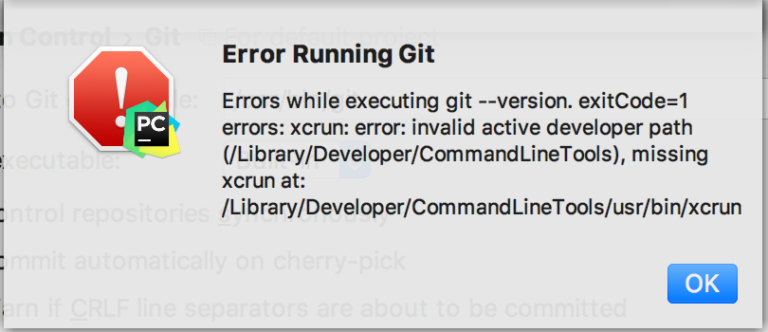
    Yesterday I updated my macOS to latest Catalina version. After updating it GIT was not working. That always happens to me :-).

    I was getting following error.

    xcrun: error: invalid active developer path (/Library/Developer/CommandLineTools), missing xcrun at: /Library/Developer/CommandLineTools/usr/bin/xcrun


    Many of you might also get this error. So the solution is pretty simple. Just follow a couple of steps and solve the problem.

    Step 1: Open Terminal and run following command

    xcode-select --install

    Step 2: After this command, there will be a prompt to update the software. So update that.

    And wait for the software to be updated.

    That’s it.


    Ref: https://stackoverflow.com/questions/52522565/git-is-not-working-after-macos-update-xcrun-error-invalid-active-developer-pa

  • Fix Unhandled rejection Error: EACCES: permission denied

    Fix Unhandled rejection Error: EACCES: permission denied

    I was trying to install gulp on my mac.

    But I was getting following errors while running command sudo npm install gulp -g

    Unhandled rejection Error: EISDIR: illegal operation on a directory, open '/Users/bhargav/.npm/_cacache/....'
    
    Unhandled rejection Error: EISDIR: illegal operation on a directory, open '/Users/bhargav/.npm/_cacache/....'
    
    npm ERR! cb() never called!
    
    npm ERR! This is an error with npm itself. Please report this error at:
    npm ERR!     <https://npm.community>
    
    npm ERR! A complete log of this run can be found in:
    npm ERR!     /Users/bhargav/.npm/_logs/2019-02-05T14_33_58_146Z-debug.log

    After a lot of findings from StackOverflow, I found the following solution for that.

    You have to run following two commands and that’s it.

    sudo chown -R $USER:$GROUP ~/.npm
    sudo chown -R $USER:$GROUP ~/.config


  • Find the particlular file recursively and delete from terminal

    First, check the files by the following command to confirm your searched files:

    find FOLDER/PATH -name '*.log'

    Now run the following command to delete:

    find FOLDER/PATH -name '*.log' -delete


    This command will delete the file containing “.log” extension.